Showing posts with label windows. Show all posts

How to prevent pc to lock without admin permission

Hello All, Today I am going to discuss a very general problem which normally faced by IT employee or who belong to software fields. 
Auto system lock on inactivity: Now you might think how the auto-lock feature can be a problem but let me tell you for IT person or specifically automation tester he should take a screenshot while executing his script using any tool like selenium or UFT,
In the meantime, if he wants to go for a time break it's quite challenging for him because IT support doesn’t allow him to change a system setting
So if you are a person who is using their own system where you have full admin access so my friend you are in the wrong place just change your system property no need to put this much mind here but for those who is working in a reputed organization where admin access is restricted by IT team just follow simple below steps 
Note: - This method will only work on a window-based system.

Step 1: - Open Run application using windows shortcut (window+R) or using the start menu, then enter notepad in the run input box and hit the enter button.

Step 2: -Copy the mentioned code and past it to a Notepad file.

set wscrpt = CreateObject("WScript.Shell")
Do
WScript.Sleep (10*1000) 
wsc.SendKeys ("{SCROLLLOCK 2}") 'Use Send Keys to press the keyboard control.
Loop  ' End Loop

Step 3: - Now save this file with ‘name.vbs’ extension, as followed in the below screenshot.

Well, that’s all you successfully created your auto keyboard action program, now whenever you want to go for a break just double click on created VBS file and the auto key function will work for you.

Trick to create folder or file without name


Create folder or file without name 


              So you want to create a file or folder that not content any name well that trick will allow you to create files and folders without any name. This trick is so simple and easy to perform any one can do it just follow the following simple step.


Step1- First create any file or folder or select any file or folder whom you want to assign name.


Step2-Right click on it, select ‘Rename’ or simply press ‘F2’


Step3- Now the main part of this trick comes, press and hold the alt key and while holding alt key type numbers 0160 from the numpad
                                    Or
Press and hold the alt key and while holding alt key press 9 from numeric keypad 8 time
Note: To perform this pc trick it is important to note that number should be typed from numpad and not from number keys present above character keys. 


That’s all ,nameless folder is created but if you want to create another nameless file or folder in the same directory so you will have to rename the file with repeat this trick two or more times.
Release the 'Alt' key. Now without doing anything else, again hold 'Alt' key and do it again.Repeat it to create as many nameless files or folders in the same directory.


How to block unwanted websites in Google Chrome

I know there are many reason why you need to know that how to block a websites. Some common reasons are you have been targeted by spammers who use adware and popup to attack your system. And other reasons may be prevent your friends or relative from having access to certain site content such as social networking site’s like Facebook, Twitter or porn site.


                                                                                                                           Anyway there are many tools for blocking website’s in chrome you can easily find it by using this link.


But  in this all extension's my favorite  is NANNY. To install it click on link you will see Google Chrome web store with some extension .Find Nanny for Google chrome and click to “ADD TO CHROME” button as shown in screenshot(for zoom click on image)

                                                                                           When you click on ADD TO CHROME button a popup window will appears click to install.(for zoom click on image)


With in a few second Google nanny will be installed and its icon will be display in right top ,Right click on it and go to option .

Then new tab will be open on your browser hear you add site name (eg. Facebook…) or site url (xyz.com) and block time(eg. 0900-1700,1900-2100 to block during 9AM-5PM and 7PM-9PM) and max time(eg. 60 min) and then save url as shown in screenshot.
                                                                   
                                                                      (for zoom click on image)

Last but most important step is go to  LockDown select site name at CONFIGURE LOCKDOWN put Duration (eg. 24 hours and 55 minute) and click on Begin LockDown .


That’s it you have don’it  and to remove blocking on websites just go to edit in Blocked URLs but its work after blockset is over but no need to wary for any problem just uninstall and re-install it 


How to disable “Microsoft error reporting“ dialog box when system error occurs in xp

Most of people know about system error and when it’s occursin XP, a little dialog box appears asking if you want to report the error toMicrosoft. Click the message box to make it disappear as shown screenshot so this post is basically that how to turn it off i mean Microsoft windows error message.


Just follow this simple step to hide this error report

* Right-click to My Computer iconand choose Properties.


* Click the Advanced tab onyour System Properties dialog box.
click for zoom


* Click the Error Reportingbutton on the Advanced tab.
click for zoom


* Place a check mark next to "Disableerror reporting."
click for zoom


* Leave the other radio buttonunchecked next to the text labeled, "But notify me when critical errorsoccur." And then click ok that’sall...


Trick to enabled num lock automatically when ever you start your pc


Lots of people don’t know about this that they can manage the “NUM LOCK” key  for each user and  set it enable or disable when user logon. NUM LOCK status is disable by default and if you want your NUM LOCK key is enable automatically. You need to edit the registry of your computer to change this status enabled .To do it

Just follow the given simple steps.


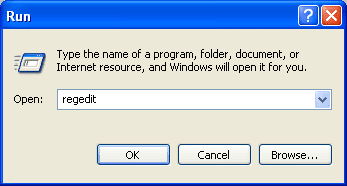
        Ø  Click Start button and go to run (or use window+R shortcut key) then type regedit in Run option then press Enter for next as shown in screenshot
click for zoom


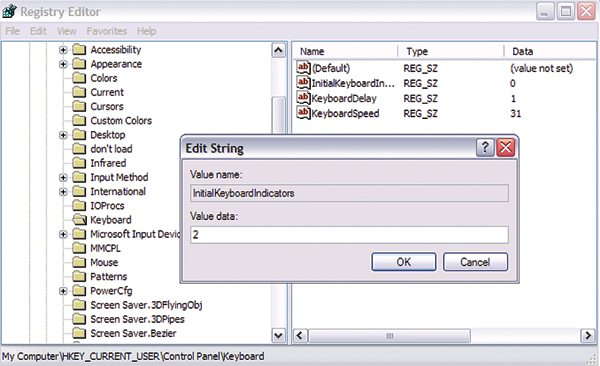
       Ø  Here locate the location go to:
                     HKEY_USERS\.Default\Control Panel\Keyboard 
                                                           click for zoom


          Ø Here in right side panel, double click on the value InitialKeyboardIndicators then change its value data from 0 to 2.
click for zoom


           Ø Now close the registry editor and restart your computer after any changes to go into effect.that's all

Subscribe by entering your email and get new updates in your inbox directly


2800 Email subscribers